Day 24 - Complete Jenkins CI/CD Project

GitHub Integration with Jenkins
So, for integrating GitHub with Jenkins, you should know about "Webhooks".
What are Webhooks?
A webhook is an HTTP request, triggered by an event in a source system and sent to a destination system, often with a payload of data. Webhooks are automated, in other words they are automatically sent out when their event is fired in the source system.
This provides a way for one system (the source) to "speak" (HTTP request) to another system (the destination) when an event occurs, and share information (request payload) about the event that occurred.
Webhooks create the hyperlink between GitHub & Jenkins.
Any changes made to the GitHub repo will be automatically identified by Jenkins and will be pushed to the webhook URL.
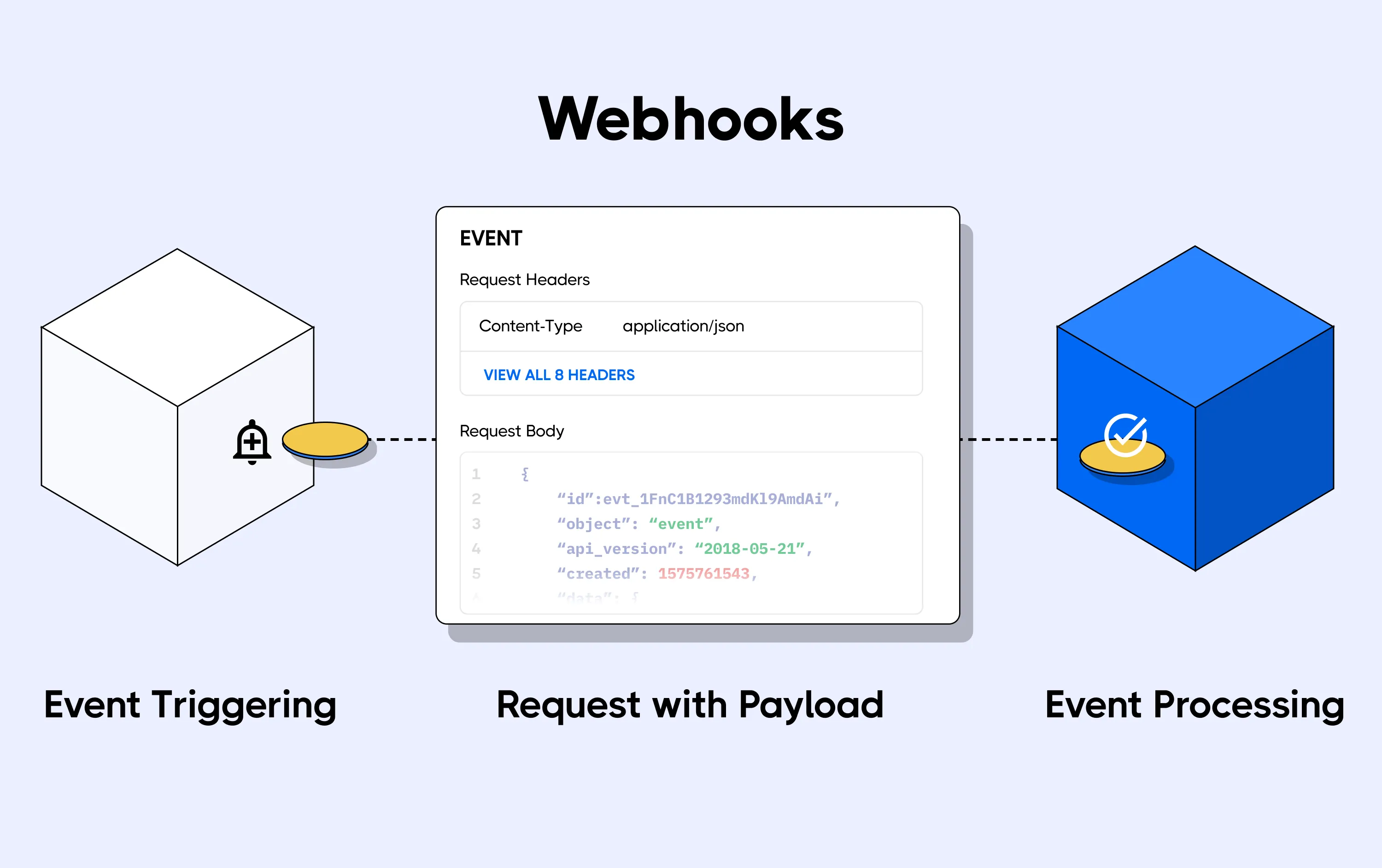
What are Webhooks used for?
Webhooks are used in a wide range of scenarios, including:
Triggering CI (continuous integration) pipelines on an external CI server. For example, to trigger CI in Jenkins or CircleCI when code is pushed to a branch.
Sending notifications about events on GitHub to collaboration platforms. For example, sending a notification to Discord or Slack when there's a review on a pull request.
Updating an external issue tracker like Jira.
Deploying to a production server.
Logging events as they happen on GitHub, for audit purposes.
How to create Webhook in GitHub?
Steps to create webhook is given below: -
Go to the settings page for your repository.

Click on the “Webhooks” tab.

Then, click on the “Add webhook” button.

In the webhook configuration, you will need to provide the following information:
Payload URL: This is the URL that will receive the webhook notifications.
For Jenkins: - <Jenkins_URL>/github-webhook/Events: Select the events that you want to be notified about.
Secret: This is a secret key that will be used to verify the authenticity of the webhook notifications. This is Optional.

Once you have configured the webhook, click on the “Add webhook” button.
After setting up the Webhooks do not forget to refresh the page unless the webhook URL is ticked as shown below.
So, basically when you create a webhook, you specify a URL and subscribe to events that occur on GitHub. When an event that your webhook is subscribed to occurs, GitHub will send an HTTP request with data about the event to the URL that you specified. If your server is set up to listen for webhook deliveries at that URL, it can take action when it receives one.
Jenkins Freestyle Job With Webhook
EXAMPLE - 1
Step 1: First create a Freestyle Job in Jenkins named node-todo-cicd.
Step 2: Configure your job as shown below:
In the Source Code Management section > Select Git > Enter the GitHub Repository Link and the branch name.

In Build Triggers, Just select GitHub Webhook option as shown below:

In the Build Steps section > Select Add Build Steps > Select Execute Shell > And type the commands required for your activity.
 docker build -t todoapp .
 docker run -d --name django-todo-app -p 8000:8000 todoapp:latest

Step 3: In your GitHub Repository in which you have added WebHook, make some changes in any file and then commit that changes as shown below.


Step 4: After committing, you can go to your Jenkins Job and can see that the build is getting triggered.

Step 5: Yo can see in the below screenshot, whatever we have committed and given the commit message in our GitHub Repo, it is in the Jenkins Console log.

Hence, you can see the Job is success.


So, By this way you can integrate GitHub and Jenkins via Webhooks.
EXAMPLE - 2
We will create a Jenkins project to run the "docker-compose up -d" command to start the multiple containers defined in the compose file. Setting up with a cleanup step in the Jenkins project to run the "docker-compose down" command to stop and remove the containers defined in the compose file.
We are using the same above pipeline, just doing some changes, as seen below:
In the Add build steps of the configuration section, write in the following command and go ahead and build the project.
  docker-compose down
  docker-compose up -d
Now, as previous in your GitHub Repository in which you have added WebHook, make some changes in any file and then commit that changes as shown below.


You can see the build got triggered after committing the changes.

Below error occurs, because the same port was used in another container and it was up and running. So just stop the container with the same port running and if you will no longer use that then can remove that as well.

After removing the container which was using the same port and will not be longer used. Repeat the step 2 and it worked.

So, above one was the example with Docker Compose using Webhooks.
You can test your application if it is accessible or not via browser using "Your_Public_IP:port" as shown below:

Conclusion
In Conclusion, Webhooks enable real-time communication between GitHub repositories and Jenkins, triggering automated builds, tests, and deployments upon code changes. This seamless integration enhances collaboration, accelerates development cycles, and ensures efficient continuous integration and delivery processes.
By harnessing the synergy between GitHub webhooks and Jenkins, development teams can achieve greater efficiency, faster feedback loops, and a more robust and automated software delivery pipeline.
In this blog, I have done a freestyle project on Jenkins to deploy a Node todo application on Docker. If you have any questions or would like to share your experiences, feel free to leave a comment below.
*👆The information presented above is based on my interpretation. Suggestions are always welcome.*😊
~Smriti Sharma✌


